Making your website accessible doesn’t have to be complicated. If you’re already using Siteimprove, you know how helpful it is for maintaining standards and catching issues. But there’s another tool that can make your workflow even smoother: the Siteimprove browser extension.
This extension works right in your browser, giving you quick access to accessibility checks without waiting for a full site scan. It’s a simple way to keep accessibility front and center as you build and update your site. Today, we’ll look at why the extension is worth using, how to get it, and what settings you should know about.
Benefits of the extension and how to get it
The Siteimprove browser extension makes accessibility checks quick and effortless. With it, you can instantly evaluate any page for potential issues—whether you’re reviewing unpublished drafts, working on intranet content, or spot-checking new material as you build it. It also provides a convenient way to dig deeper into specific issues identified in the main Siteimprove platform. While the full Siteimprove suite is perfect for governance and large-scale audits, the extension gives you real-time feedback as you work, helping you catch issues before they become bigger problems.
If you would like to get the extension, installing it is easy. Just visit Siteimprove's website to download it. The extension works with popular browsers like Google Chrome and Firefox, as well as certain Microsoft products. For the most up-to-date list of supported browsers, check Siteimprove’s official site. Keep in mind that this is different from the Siteimprove module you see when logging into your SiteNow v2 or v3 site. This functionality is separate from the downloadable browser extension. The module has limited support and has a couple known issues which can limit its usage. The browser extension has proved to be more stable and is what we recommend using for per-page accessibility scans at this time. The browser extension (discussed in this article) is a per‑page evaluation tool and can be used on SiteNow sites (both frontend and backend) as well as on other websites.
Understanding filters and settings
After spending a few minutes exploring the settings, you’ll notice several tabs and pieces of information available to you. The Issues tab highlights AAA, AA, and A accessibility issues affecting your site and individual pages, along with guidance on how to fix them. It shows how often each issue occurs and where it is located on the page. The Design Kit tab allows you to apply various filters to see how your site appears to users with color blindness or other visual impairments. It also includes guidance on best practices for elements such as buttons and link labels, color contrast, and more.
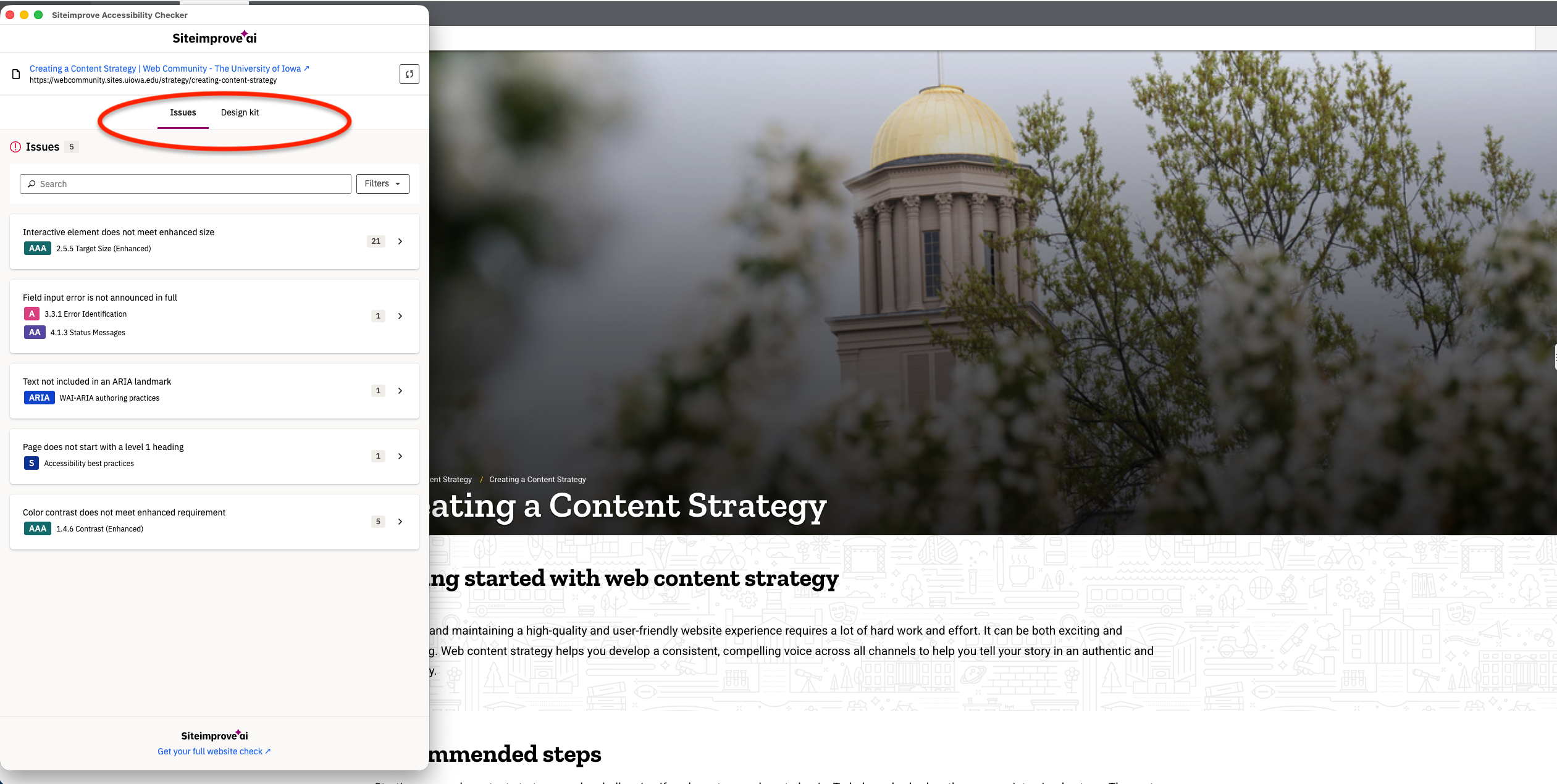
After fixing any issues, you can recheck the individual page to confirm that everything has been resolved. One of the most important things to address is accessibility issues on your site. These include compliance with ADA, DOE, and DOJ standards, focusing specifically on problems that could lead to enforcement actions. When using the extension, prioritize resolving accessibility issues above all other data it provides. At times, you may find accessibility problems that you cannot resolve on your own and that require a developer-level fix. When that happens, please contact your website's technical contact with a description of the issue so they can take a look and work to resolve it. Finally, even if your scan shows no issues, that doesn’t mean the page is fully accessible. Automated scans don’t catch everything, so staying up-to-date on accessibility best practices is still essential.
For University of Iowa web teams, the Siteimprove browser extension offers more than convenience. It’s a practical solution for maintaining accessibility standards. The Siteimprove browser extension makes that goal easier by providing instant feedback as you work. To support your accessibility efforts, be sure to explore additional resources such as the Siteimprove Service page, the university’s Accessibility Testing Tools, and the Siteimprove Training section on the Web Community site. Using these tools and resources (when paired with the full platform), helps create a digital experience that truly serves everyone on campus.